As an Admin or a Coach role, you can create and manage Goal Templates available to users in your system. A Goal Template is a pre-saved goal that you and others can use again and again as a basis for creating a new goal with similar steps.
Contents:
a. Authoring a Goal Template from a New Goal
b. Authoring a Goal Template from the Goal Templates Tab
Creating a Goal Template
Creating a goal template is as easy as creating a new goal! You can either author a new goal template directly from a new goal, or you can author a new goal template directly from the Goal Templates tab in your Goals Hub page.
Authoring a Goal Template from a New Goal
One way to author a goal template is by creating a new goal. First, create a new goal by clicking any of the available 'Create New Goal' buttons found in your Goals page of Coaching Corner.
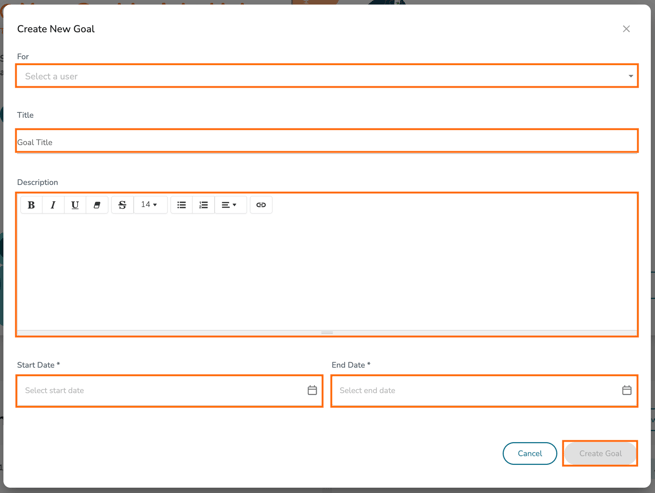
Give your goal a Title, a Description, and a Start and End Date. Then click 'Create Goal.'
On the next page, navigate through the available tabs, adding any Action Steps, Metrics, Resources, and/or Tags. Then click on the 'More' tab and select 'Settings.'
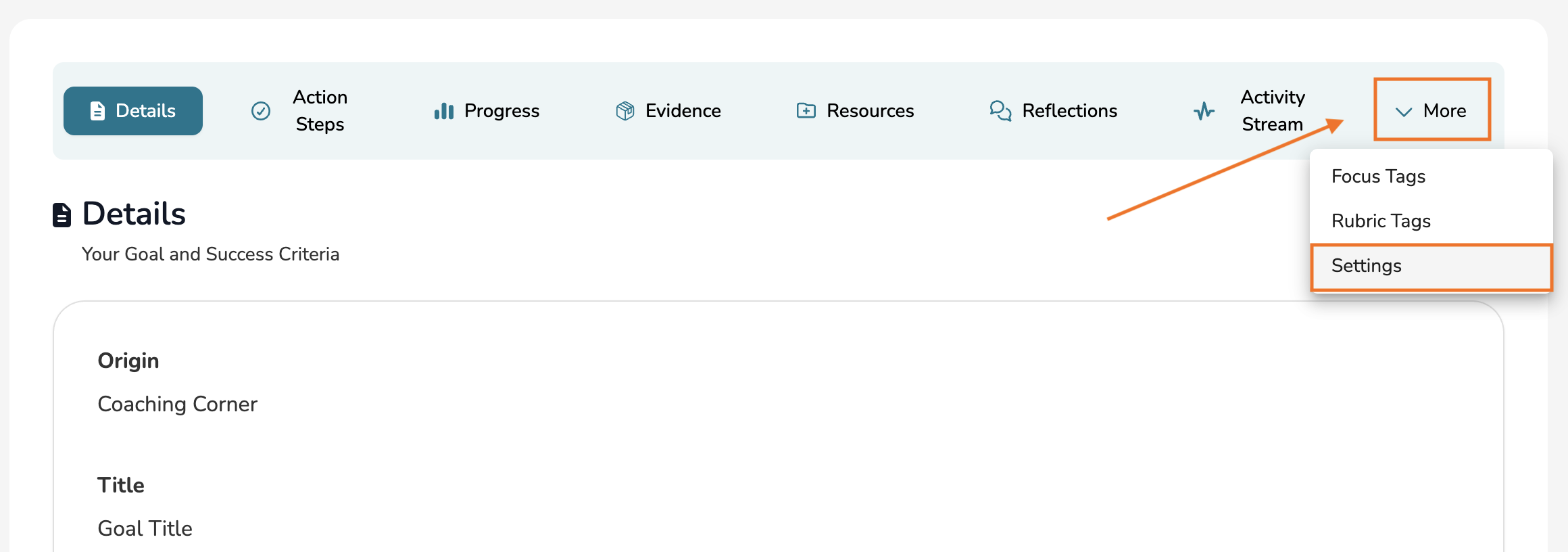
At the bottom of the Settings page of your goal, click 'Save as Template.' You will then be able to use this goal as a goal template moving forward and can reference and modify it on your Goal Templates tab.

Authoring a Goal Template from the Goal Templates Tab
You can also author a goal template directly from the Goal Templates tab of your Goals page in Coaching Corner. Navigate to this tab and then click 'Create New Template.'

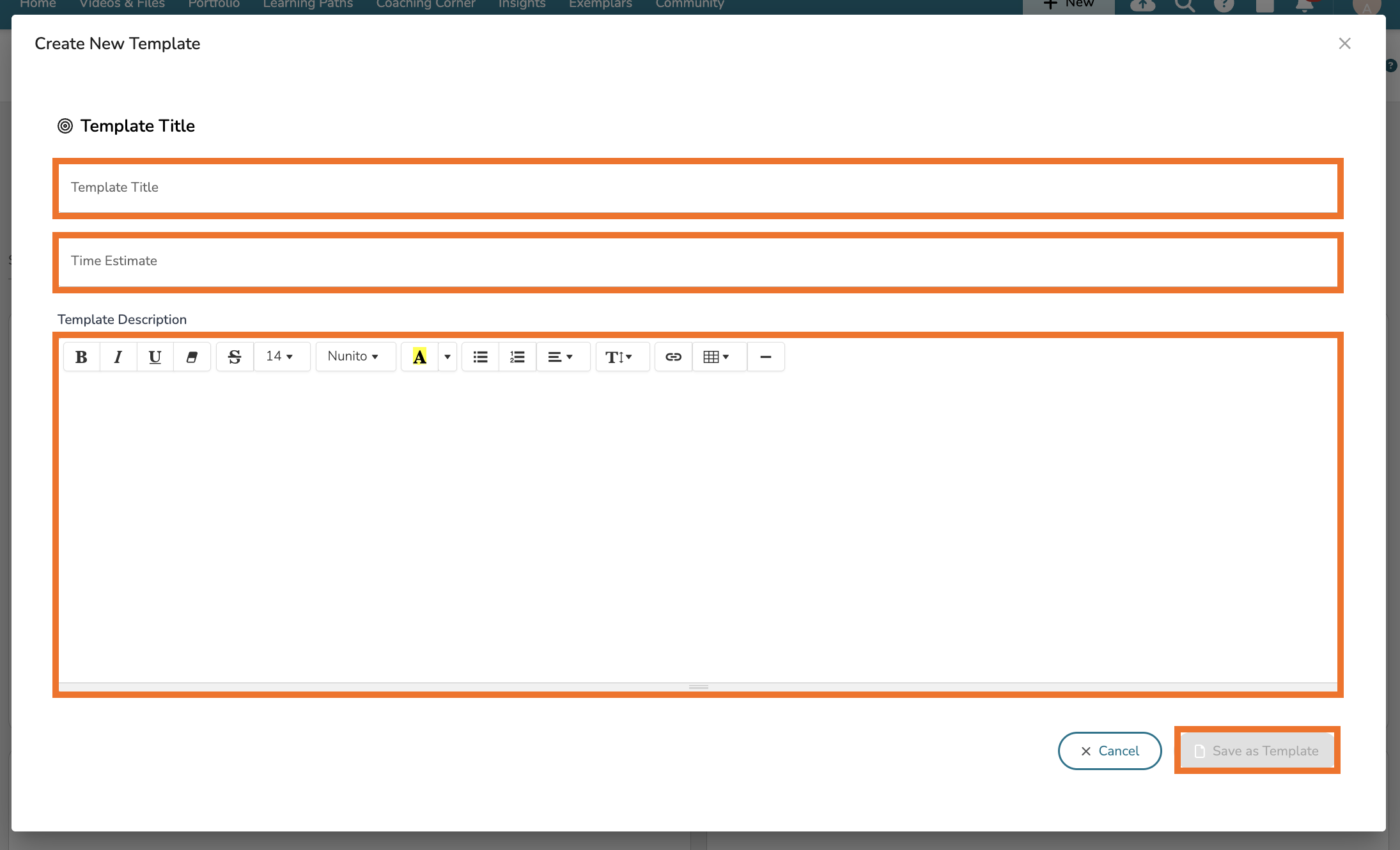
From there, you will be brought through a template details page. Please give your template a Title, a Description, and a Time Estimate for how long of a period of time the goal should be open for. The title and description will default to the Goal Title and Goal Description when someone uses this template in the future.
Next, click 'Save as Template.'
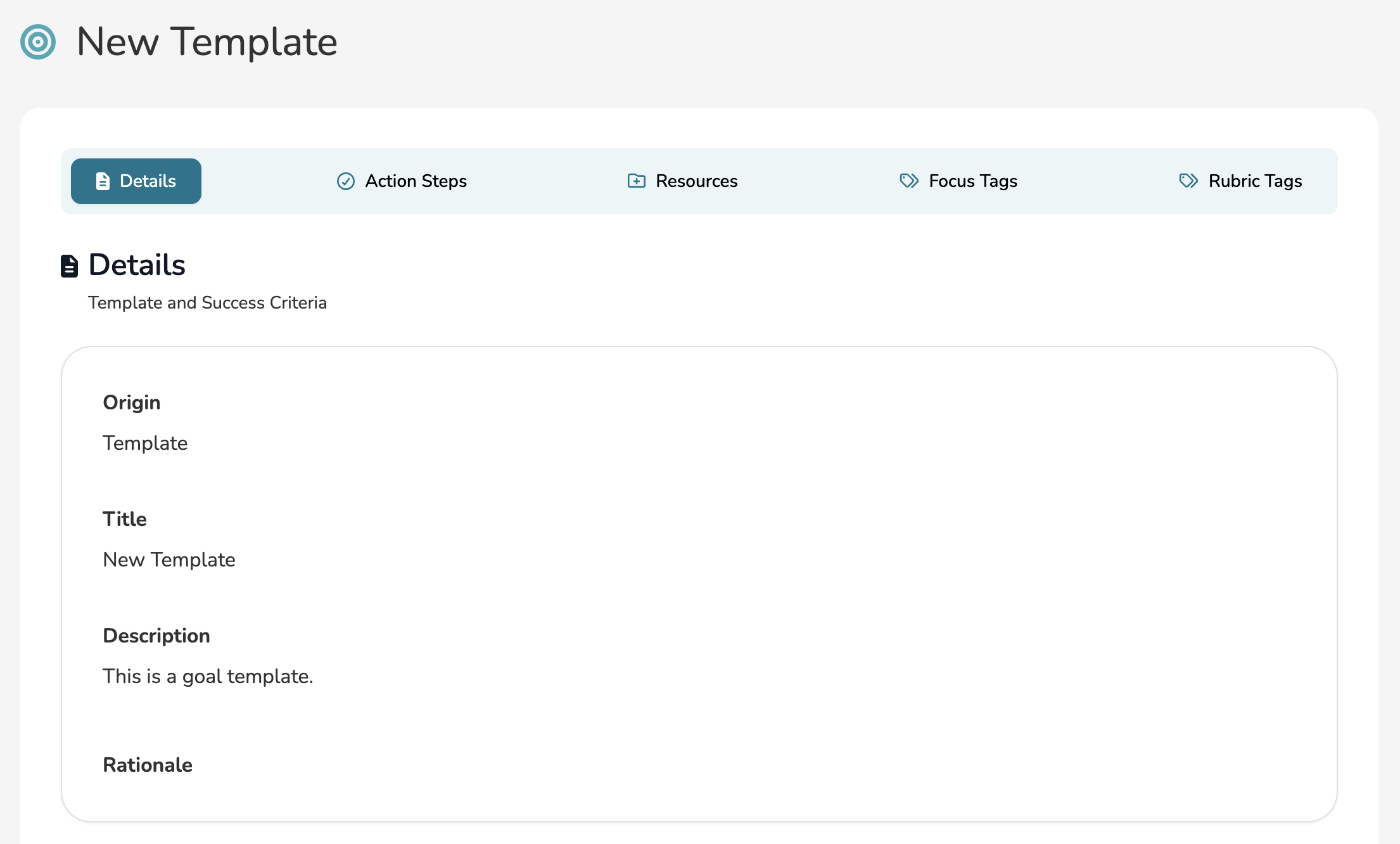
On the next page, navigate through the available tabs, adding any Action Steps, Metrics, Resources, and/or Tags. Your changes will automatically save to the goal template.
Managing Goal Templates
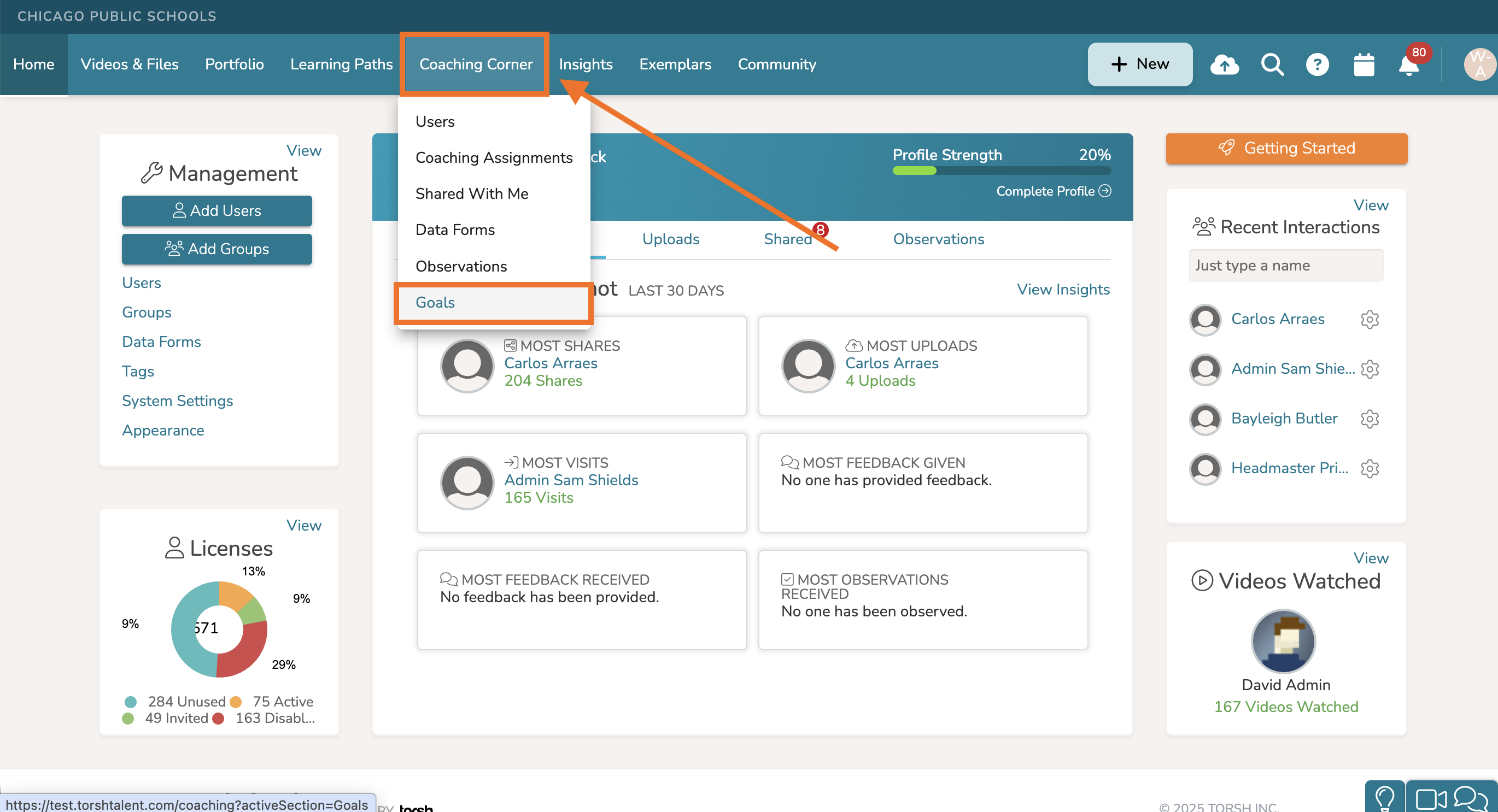
To manage your existing goal templates, navigate to Coaching Corner in the top navigation bar and select 'Goals.'
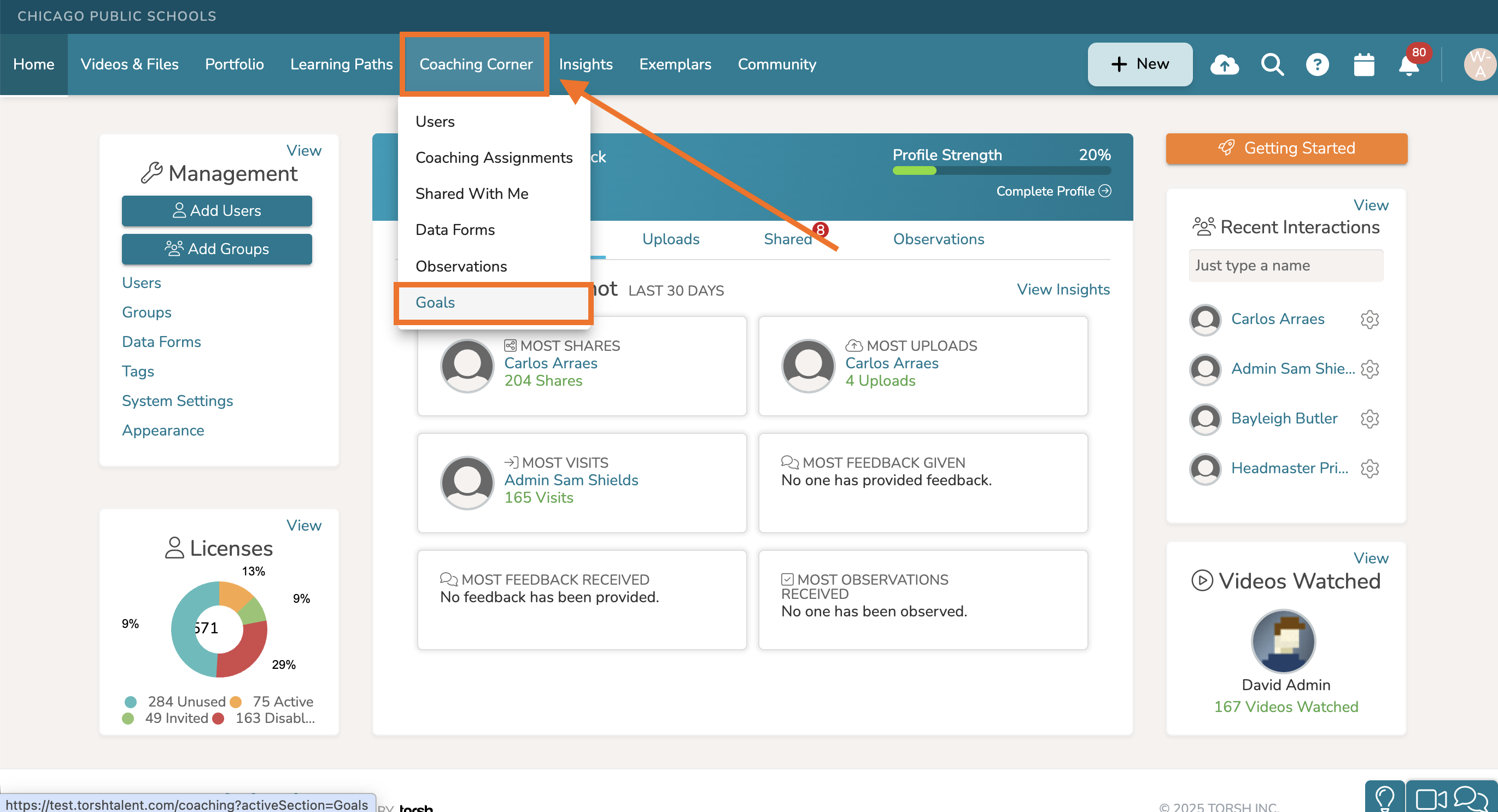
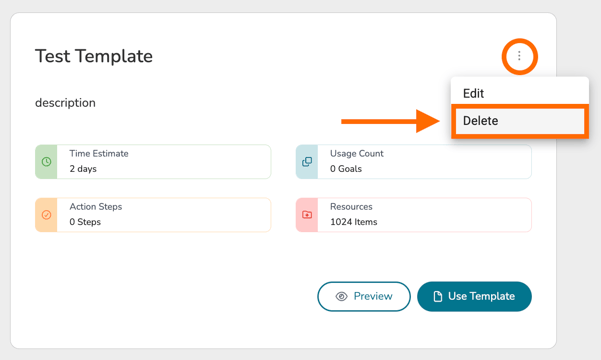
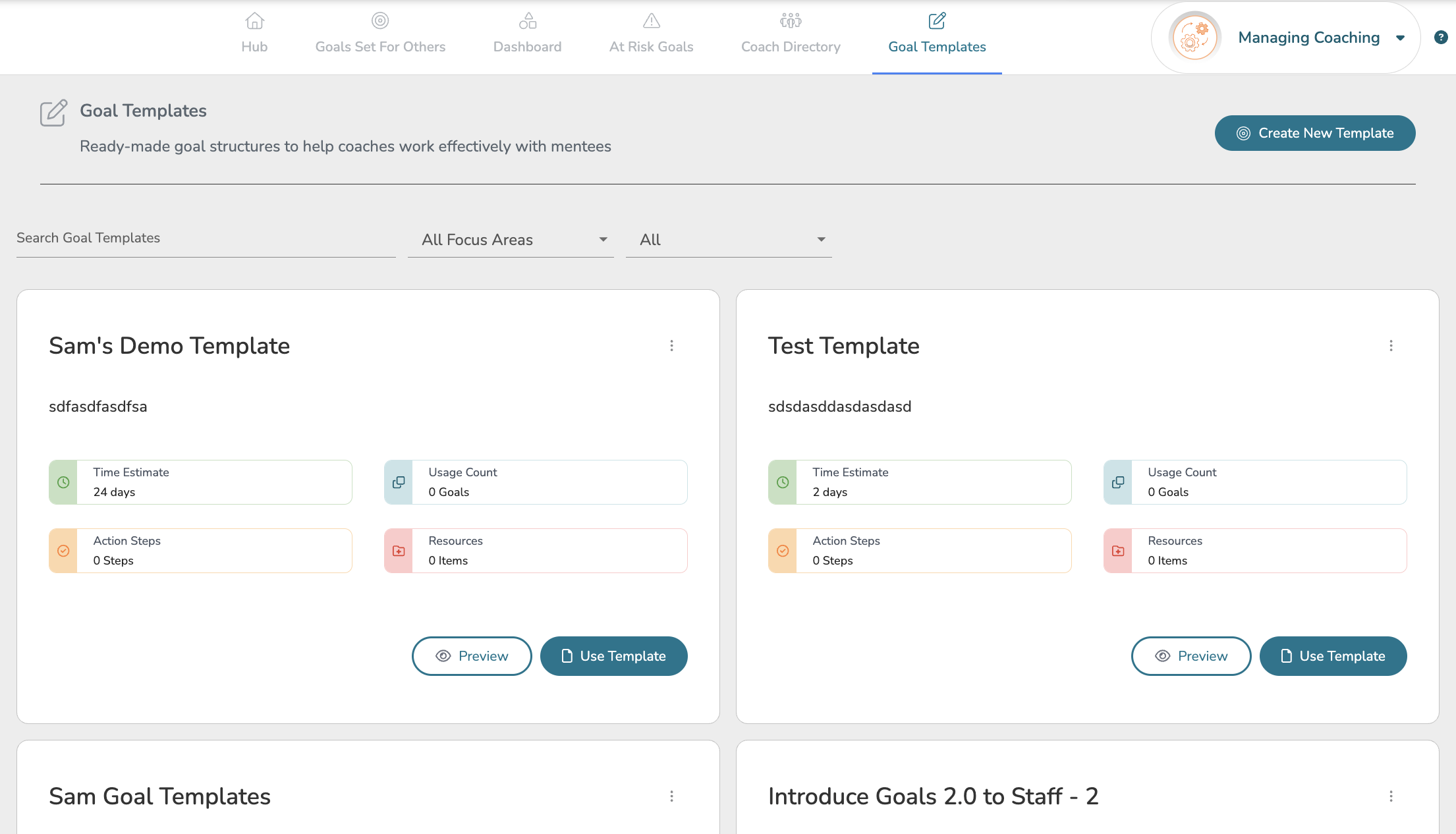
If you are an Admin or a Coach role, you can then click on the 'Goal Templates' tab to find all of the goal templates available to your system! Each template will display as a card listing Time Estimate, Usage Count, Action Steps count, and a Resources count.
To author a new goal using one these goal templates, click 'Use Template.'
To modify an existing goal template, click on the template's 'three-dot' icon in the top, right hand corner of the template card. Then select 'Edit' from the dropdown menu. You can then modify the template as if it were a goal.
NOTE: Modifying a goal template will not affect any existing goals that used this template in the past.
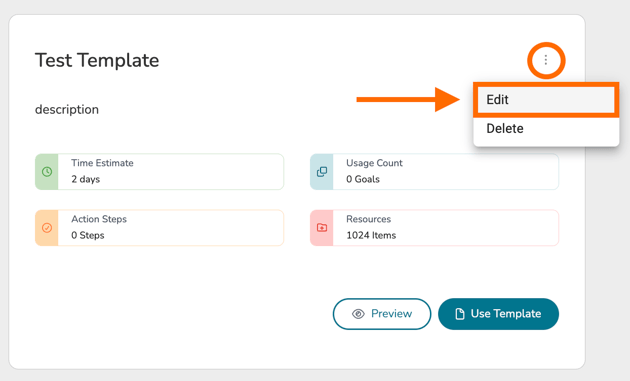
To delete a goal template from further use, click on the template's 'three-dot' icon in the top, right hand corner of the template card. Then select 'Delete' from the dropdown menu.
NOTE: Deleting a goal template will not affect any existing goals that used this template in the past.