
As a System Admin, you can disable accounts in your TORSH Talent system as needed. Disabling an account does not forfeit the license associated with it. The user associated with the account is no longer able to login.
Contents:
I. How To Disable an Active Account
II. How To Reactivate a Disabled Account
How To Disable an Active Account
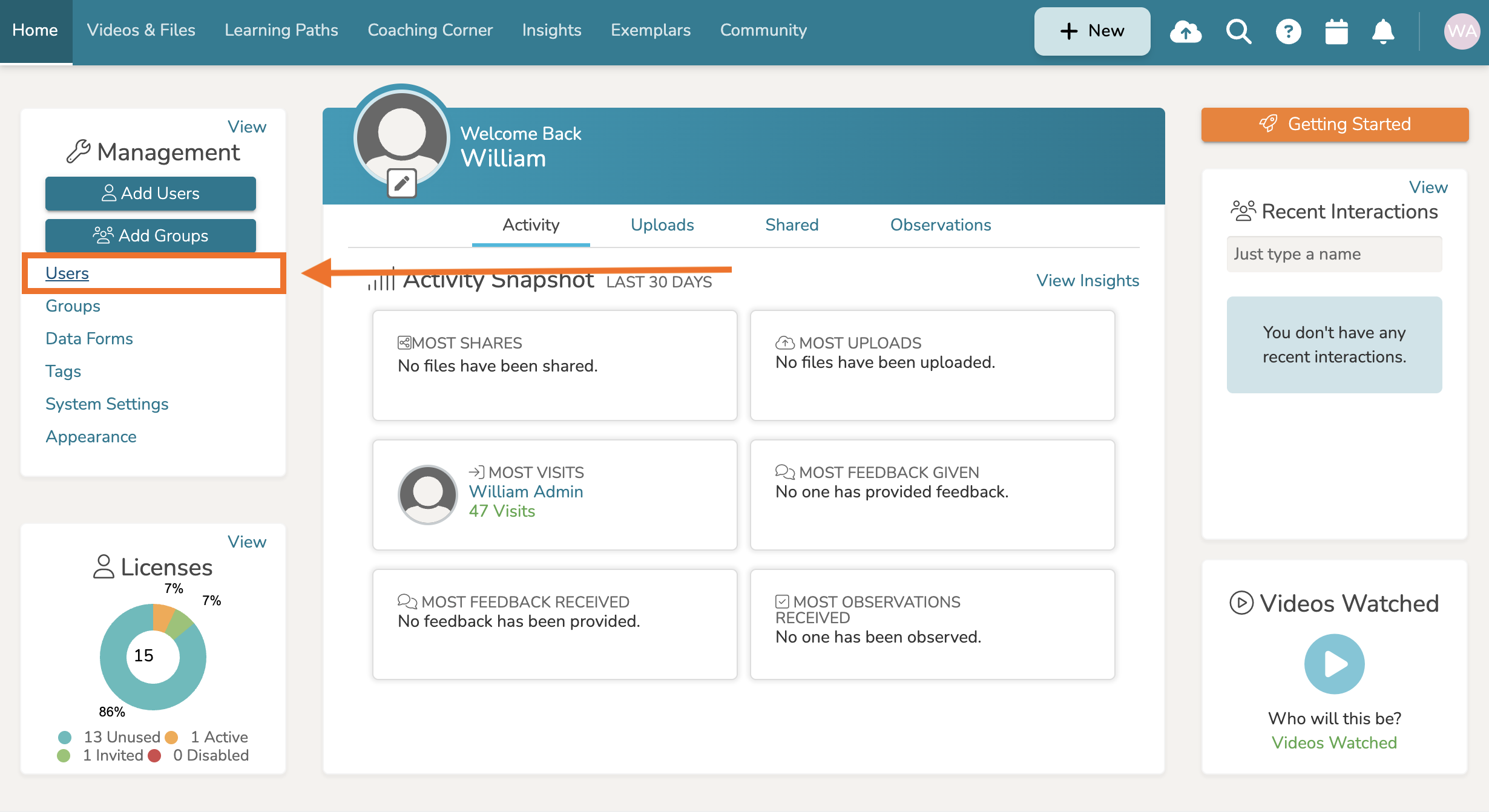
To disable an account, first locate your Management Panel found on the left-hand side of your Homepage. Then click on 'Users.'
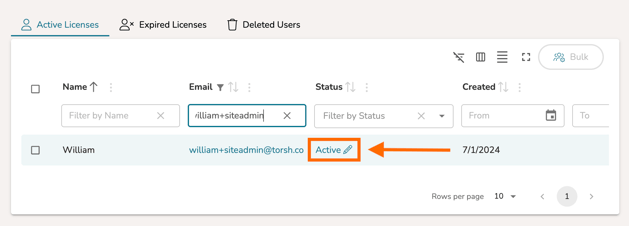
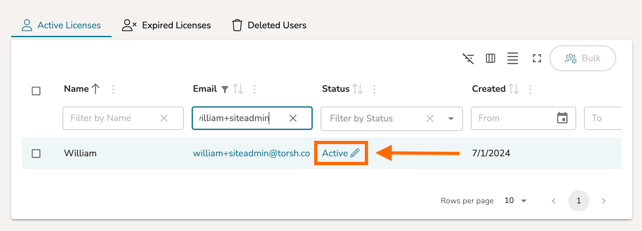
This will take you to your Users Management page. Once there, you can locate the specific user that you wish to Disable and click on the 'pencil icon' next to their current 'Active' status to make the change immediately.
How To Reactivate a Disabled Account
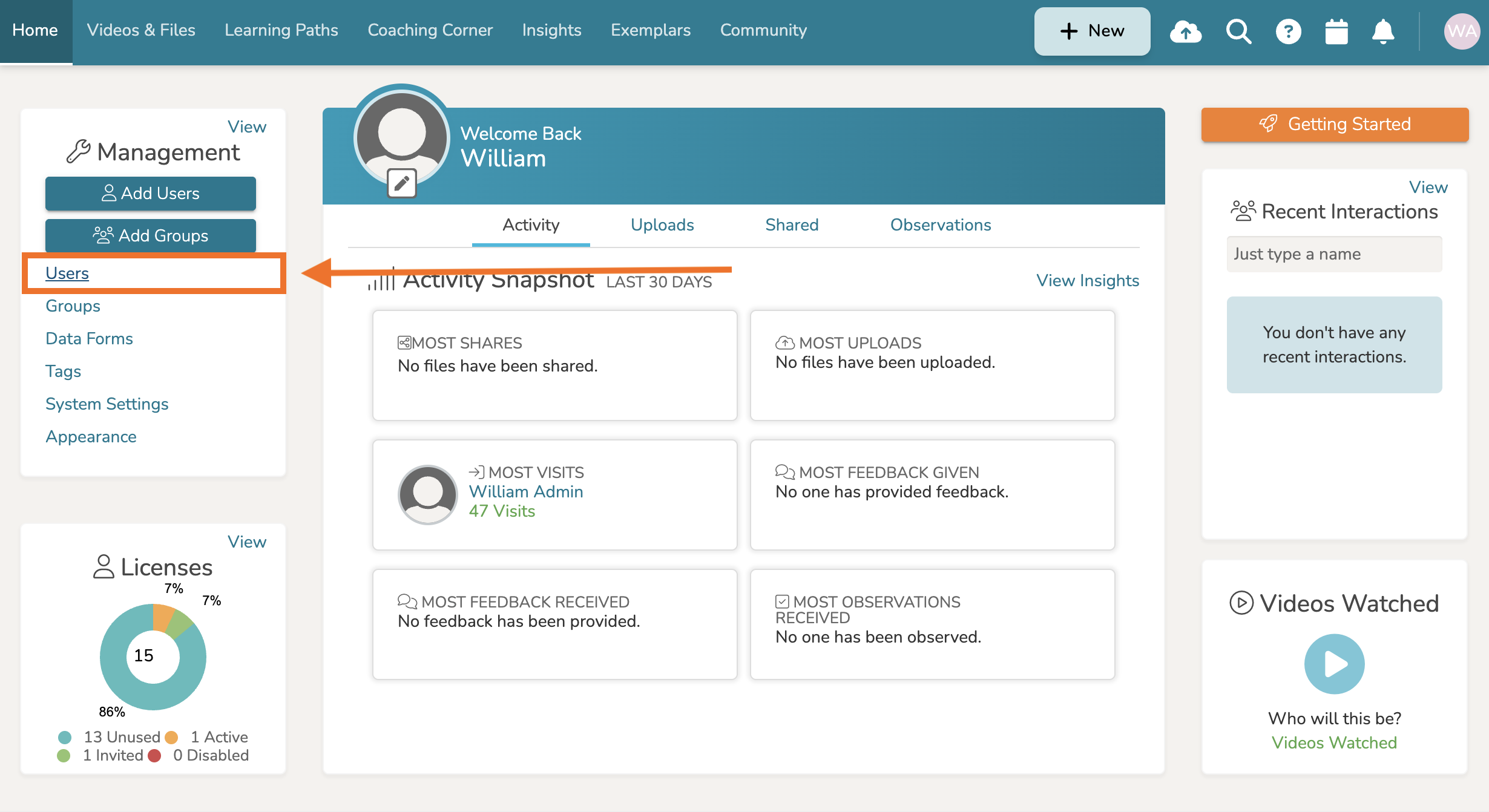
If you need to reactivate a disabled account in your system, first locate your Management Panel found on the left-hand side of your Homepage. Then click on 'Users.'
This will take you to your Users Management page. Once there, you can locate the specific user that you wish to Reactivate and click on the 'pencil icon' next to their current 'Disabled' status to make the change immediately.
NOTE: You can always sort your Status column by 'Disabled' to easily find any disabled users.
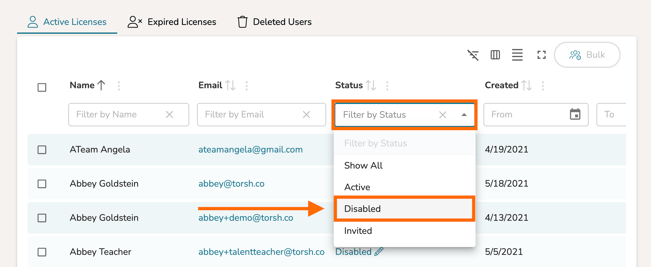
After sorting the list, you can locate the specific user that you wish to mark Active and click on the 'pencil icon' next to their current 'Disabled' status to make the change immediately.
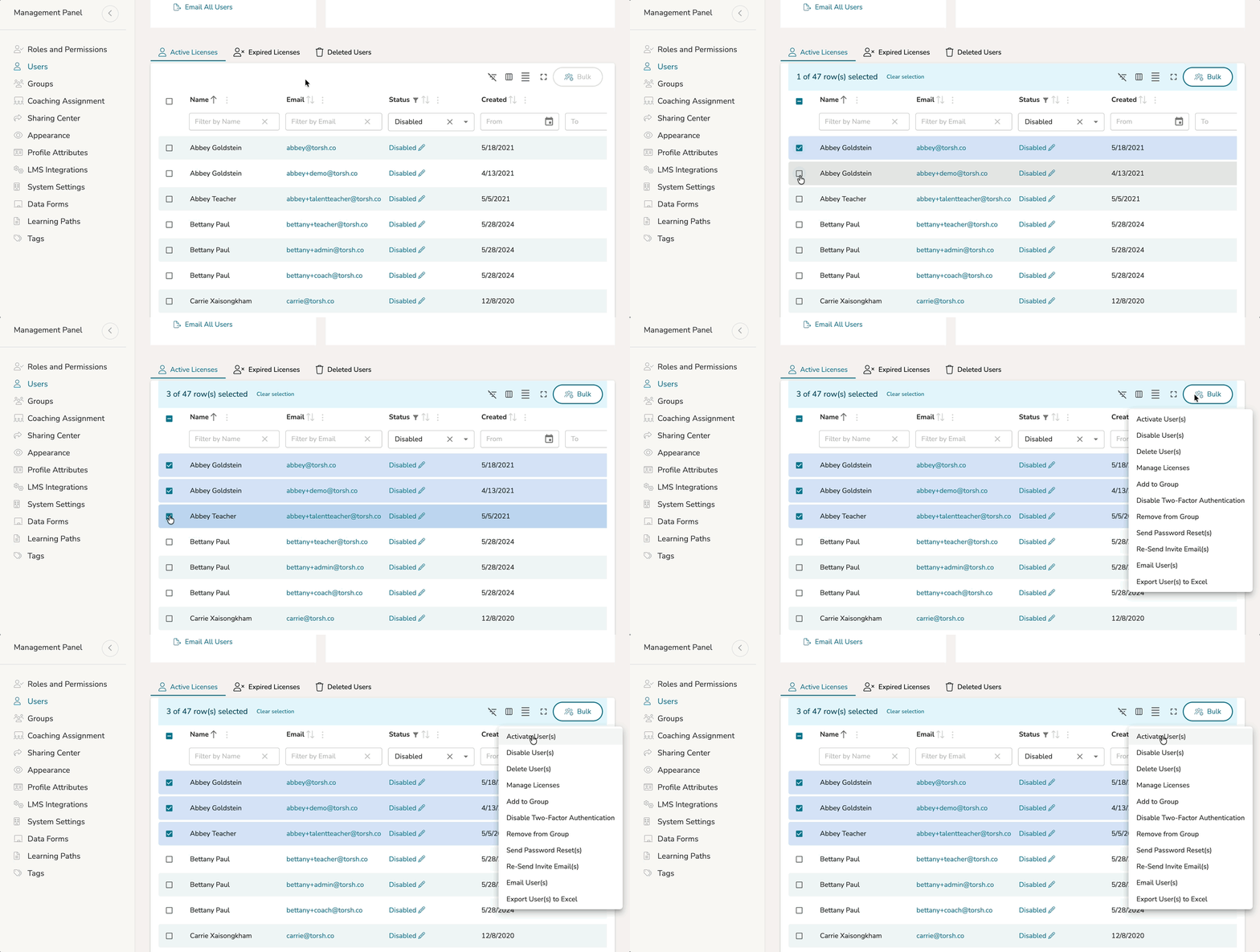
You can even make multiple disabled users active again by multi-selecting the disabled users via their associated 'checkboxes' and then clicking the 'Bulk' button to 'Activate User(s).'
Rather watch a video? Check out our tutorial on Managing Users here. HIPAA users, click here.