
If your system has purchased the Talent-Ed AI Coaching add-on, you can further streamline your data form completion by using AI to analyze uploaded video content and automatically fill out the assigned form template/rubric based on the audio transcript of the video.
This AI tool is designed to save time by offering a first pass on forms that coaches can then adjust as needed. With each answer choice provided, Talent-ed AI also provides reasoning for its choices to enhance transparency and further understanding.
Requirements for Generative AI Observations
Only once 'Generative AI' has been enabled for your system can you begin using the Talent-Ed AI feature. New video uploads made from this point on will be selectable for generative AI observations by Coach role accounts.
Talent-Ed AI only pulls its data from the audio transcript of the videos you upload. It does not and cannot observe the visual data of a video upload. When a new video is uploaded to your account, Talent-ed AI will automatically generate a detailed transcript, for ease of reference. Video uploads made from this point on will have a transcript displayed alongside the video using the 'Transcript' tab below the video.
If your video does not have already have transcript generated, please generate one by clicking on the video's 'gear icon' and selecting 'Generate AI Transcription.'
To summarize, in order for Talent-Ed AI's observation tool to be available for your video observation/self assessment, make sure you have the following in place:
- A video file with usable audio that includes one or more individuals speaking during the recording session.
- A transcript generated/uploaded for the video.
- A rubric using our Data Form Templates. It is not available for Legacy Rubrics.
How To Generate an AI-Generated Observation
Once a video has been uploaded and shared with you, click 'Start Observation' in the top, right-hand corner.

Choose your data form template. Above your template, next to the 'Discard' button, you will notice a new 'magic wand' icon. Click on the 'magic wand' icon to prompt the AI to start filling out the data form. A pop-up will appear requesting the grading style of the AI.

In the modal that appears, choose the grading style you want the AI to apply:
- Normal Grading (default) - Provides standard AI grading without additional modifiers.
- Strict Grading - Adjusts the AI to apply stricter grading criteria.
- Lenient Grading - Adjusts the AI to apply more lenient grading criteria.
Click 'Generate' to apply your chosen grading style. Please give the AI several minutes to process the complete video transcript and apply its analysis.

Once the AI has completed the form, review each section for accuracy and make any necessary adjustments based on your own observations.
Viewing the AI Rationale for Answer Choices Provided
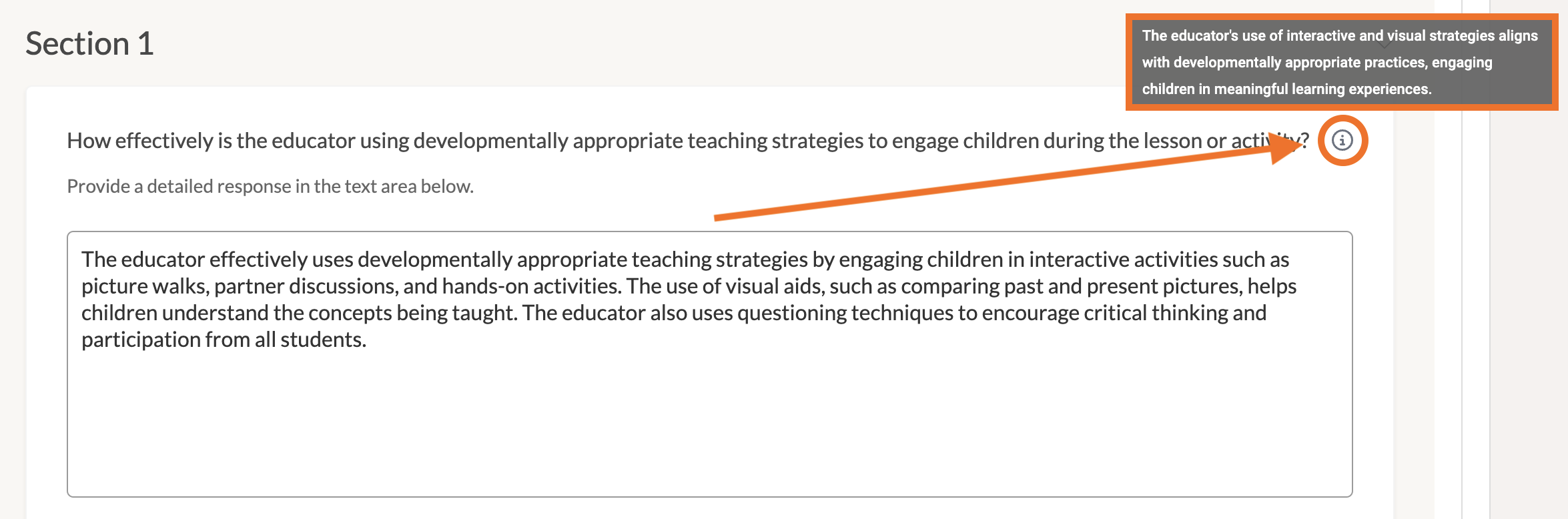
For each AI-generated response in the data form, you’ll see an 'info icon.'  Hover over the icon to view the AI’s rationale behind its response, score, or comment. This information offers further transparency on how the AI arrived at its conclusions and helps you understand its interpretation of the video content.
Saving Your AI-Generated Video Observation
Once you’ve reviewed and adjusted the AI-populated data form to your liking, save the form as needed by either clicking 'Save as Complete' to save a version of this form to come back to or 'Complete and Share' to fully publish and share the observation with the owner of the video.
From here you can either choose to re-run the AI by clicking the 'magic wand' icon again and choosing a different grading style, or you can make your personal adjustments and observations from here! If you re-run the AI with the same style, the system will display the original generation without regenerating content.