If your system has purchased our Automated Transcript Generation add-on, then your videos will automatically generate a transcript using our AI transcription tool soon after uploading!
If you do not have access to our Automated Transcript Generation add-on, please see this Help Center article here to learn about generating and uploading a transcript via other means.
Contents:
I. Manually Generating an AI Transcript
II. Manually Generating an AI Transcript in Another Language
III. Modifying Speakers in an AI Transcript
IV. Displaying Closed Captions/Subtitles Based on an AI Transcript
Manually Generating an AI Transcript
If your video did not automatically generate a transcript initially, you can always generate a transcript manually so long as you own the video, or the video has been shared with you at High Permissions.
To do so, open the video as if you were going to watch it. Then click on its 'gear icon' in the top, right-hand corner of the webpage. In the dropdown, select 'Generate AI Transcription.' The tool will then take a few minutes to generate your transcript.
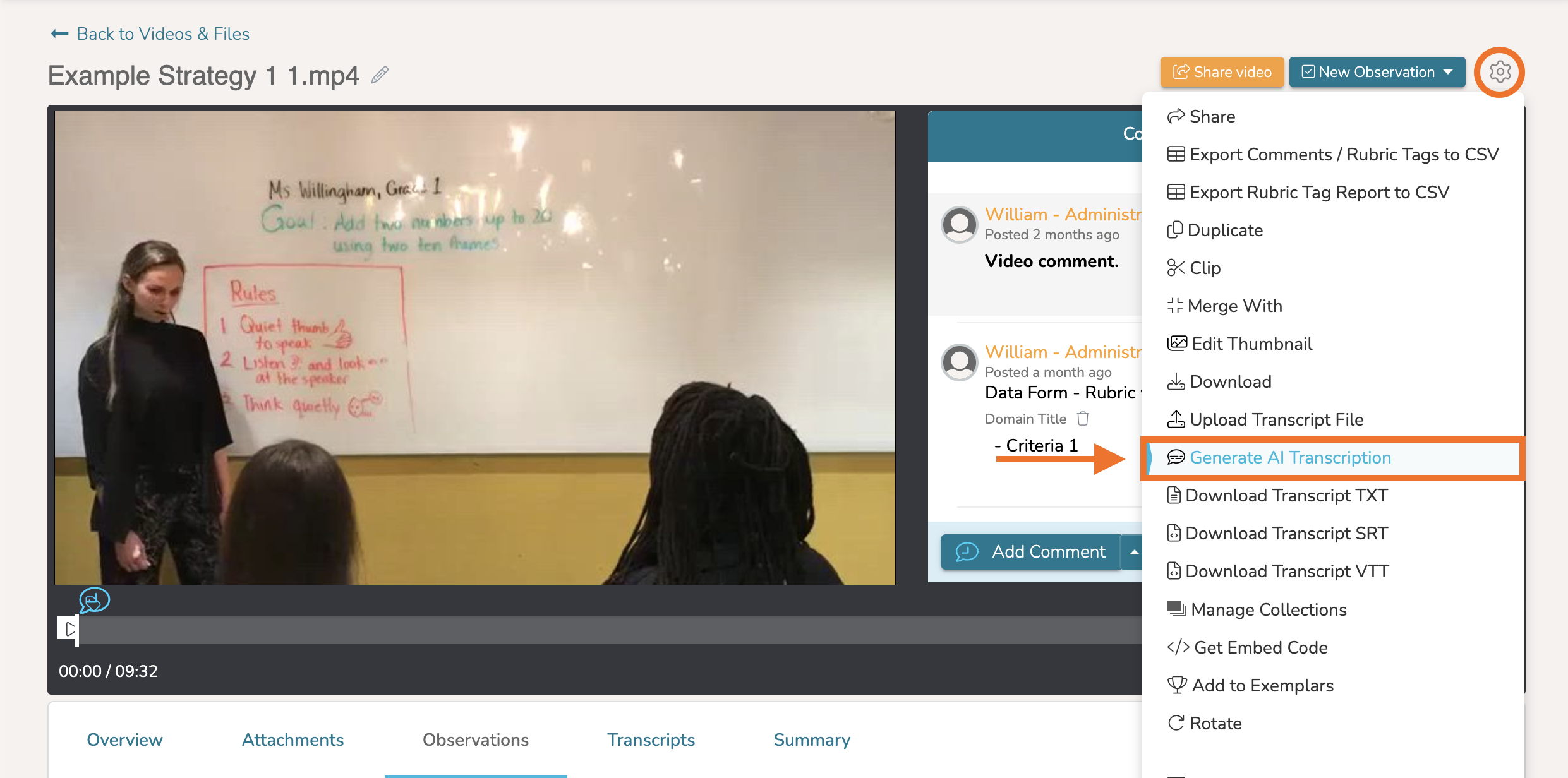
When the transcript has fully generated, you will find it listed underneath the video in the 'Transcripts' tab.
Manually Generating an AI Transcript in Another Language
If you wish to generate a transcript for your video in another language other than English, first open the video as if you were going to watch it. Then click on the 'Transcripts' tab below the video.

From there, find the 'Language' dropdown and select from the available languages. Doing so will automatically begin the generation of language selected and save it for reference moving forward.
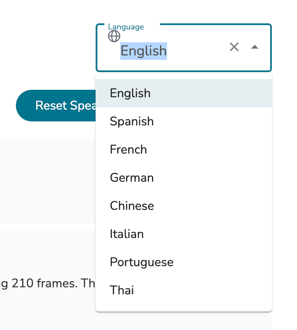
If you wish to return to the English translation, simply click on the 'Language' dropdown again and select English.
Modifying Speakers in an AI Transcript
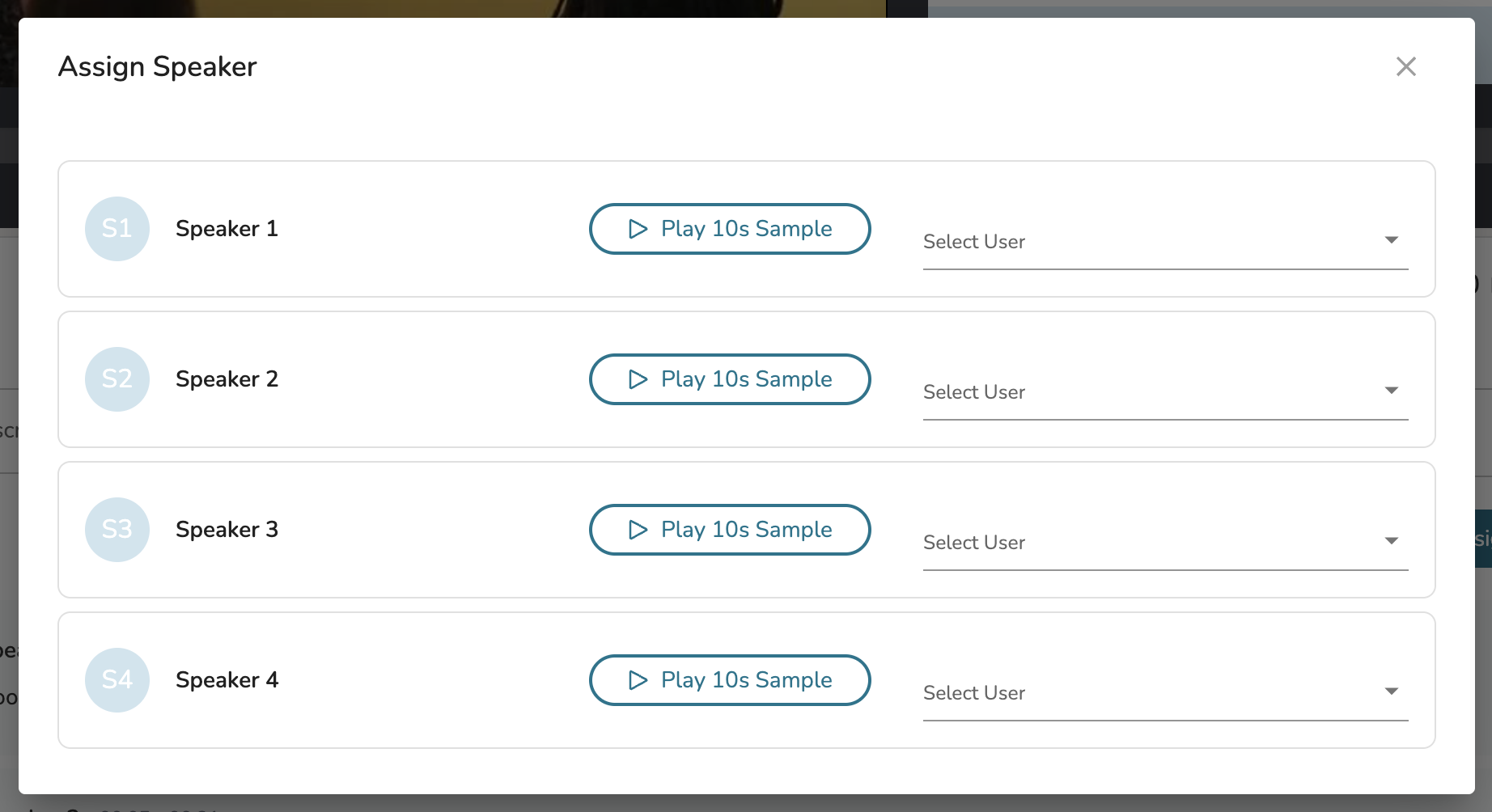
From the Transcripts tab of the video, you will find each Speaker listed out along with their associated text. If you wish to modify the speakers presented, click 'Assign Speaker.'
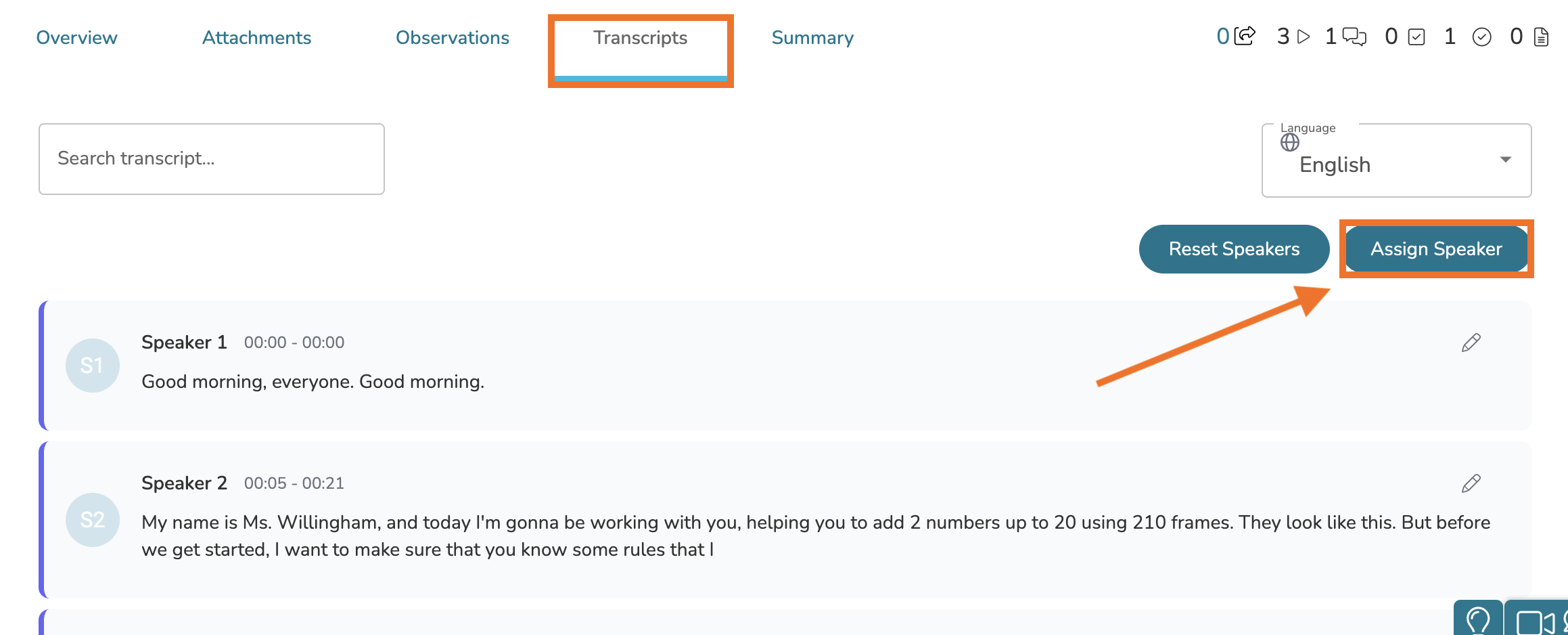
In the Assign Speaker pop-up, you will see a list of all speakers assembled by the AI tool. You can click to 'Play 10s Sample' to hear the voice of the speaker for clarification and then click 'Select User' to select an active user in your system to assign as that speaker in this transcript.
Displaying Closed Captions/Subtitles Based on an AI Transcript
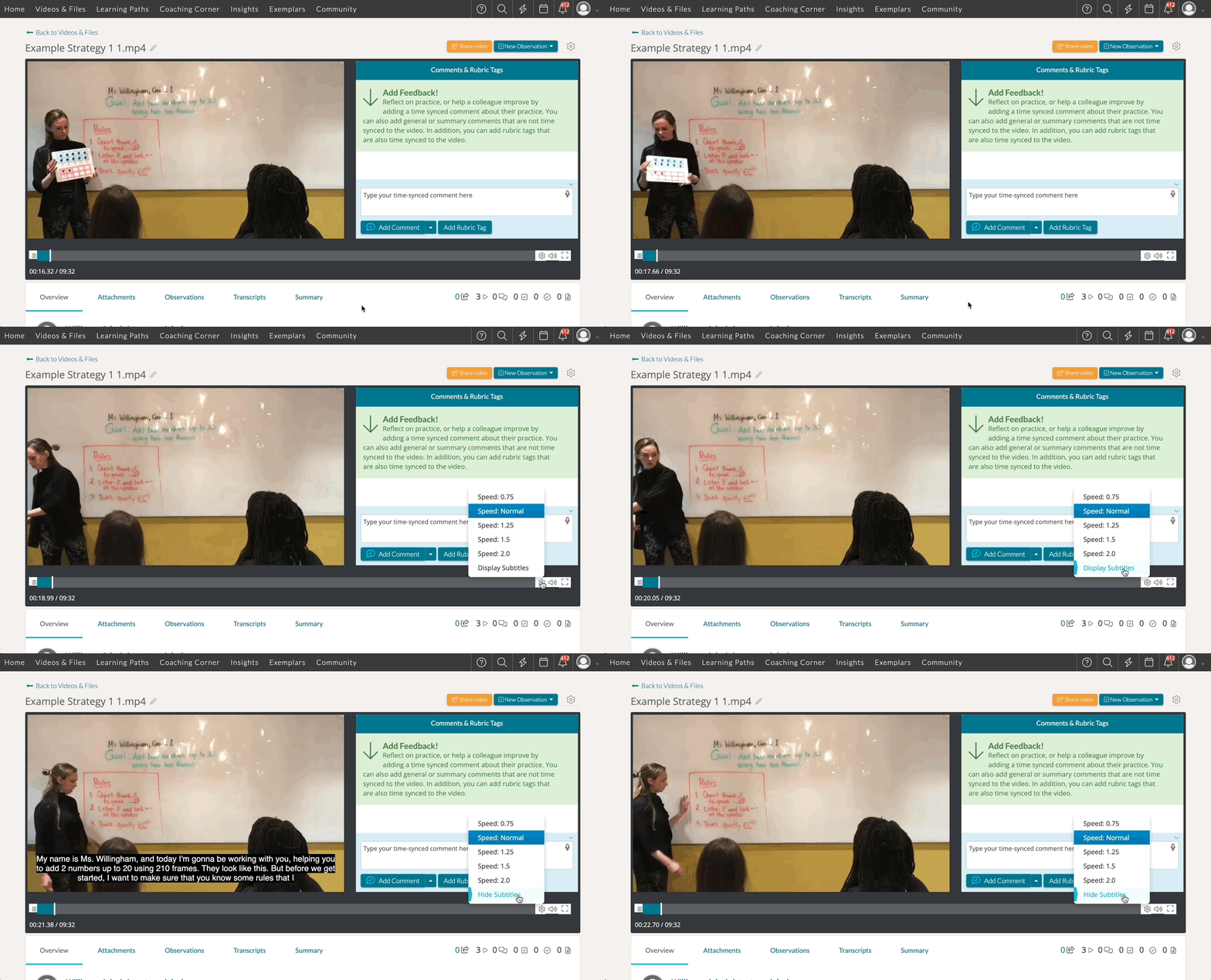
When viewing a video with an AI-generated transcript, you can choose to display closed captions (ie subtitles) over the video as it plays!
- To do so, click on the video to view it. Next, navigate to the video timeline below the video image.
- On the video timeline, locate the 'gear icon' on the far, right-hand side and hover over it. A pop-up will display.
- In the pop-up that displays, click 'Display Subtitles.' If your video has an associated transcript, it will now display the generated text as subtitles while the video plays.