
In Data Forms, you may be required to send out and/or provide a signature via a Request Signature component. There are various scenarios in which you may encounter a Request Signature component when viewing a data form, so we've provided some helpful instructions for how to provide or request a signature in those different use cases!
NOTE: If signatures have been given to a data form, and you as the participant have marked the data form as 'Complete,' then you cannot modify your data form without deleting the previous signature entries first.
Contents:
I. How To Complete a Signature Request
III. Modifying a Completed Data Form After Signatures Are Provided
How To Complete A Signature Request
If you were requested to provide a signature to a data form, you will automatically see an option to add your signature.
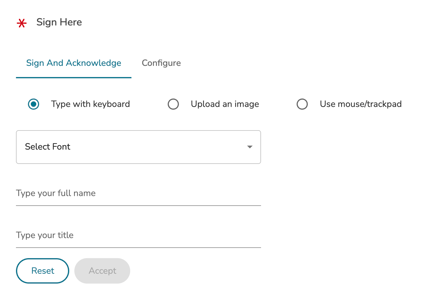
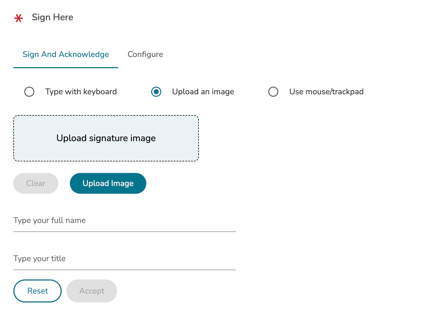
Based on the setting of the component, you may be given several options in which you can provide your signature. Those possible options are:
- Typing a signature using your keyboard (select a font and type your signature)
- Uploading a signature image
- Hand-drawing a signature using your mouse/trackpad
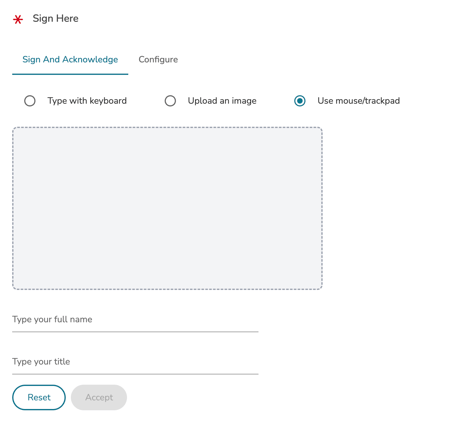
After you provide your signature, you can then 'Type your full name' and 'Type your title,' if you have one. These will display in plain text below your signature.
Click 'Accept' when you are done.
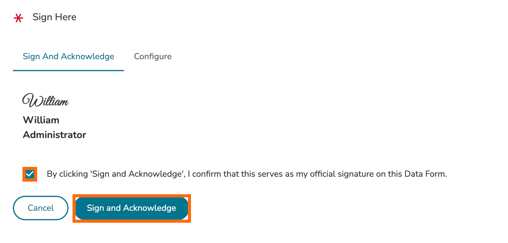
Then click on the 'acknowledgement checkbox.' Lastly, click 'Sign and Acknowledge' to fully sign this component.
How To Request Signatures
If the signature component of the data form you are completing does not require your signature as the participant, but you instead need to request signatures of other users, you will see the following message:
No signers have been configured yet. Please go to the Configure tab to add signers before anyone can sign this section.

To request other users to sign the form, please do the following:
- First, click on the 'Configure' tab of this component.
- Then click 'Add Signer.'
- You will then be given the option to add a specific user in your system to sign this component. Alongside their listing will be a status of whether or not their signature is 'Pending' or if they have 'Signed.'
- If your Request Signature component was built with Parallel Signing in place, then the signatures you request can be completed at any time by the users you have requested to complete the form.
- If your Request Signature component was built with Sequential Signing in place, then the signatures you request will need to be arranged in the 'Configure' tab in the order of who should sign first. Each requested signature listing will have a number designating their order.
NOTE: Non-participant users who are requested to provide a signature will immediately be given 'View' Permissions access to the form, in which they can view the form and only provide their signature to it.
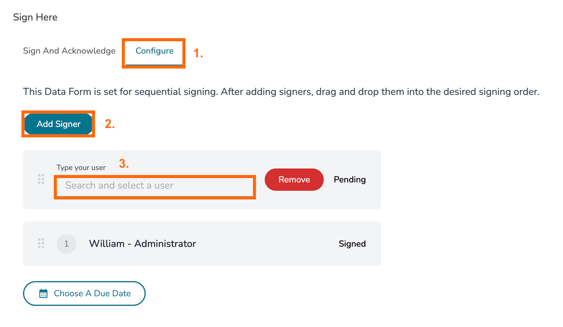
You can also 'Choose a Due Date' for the requested signatures. Doing so does not put an expiration date on the signature component. It only provides a date in the notification sent out to requestees.
Modifying a Completed Data Form After Signatures Are Provided
If signatures have been given to a data form, and you as the participant have marked the data form as 'Complete,' then you cannot modify your data form without deleting the signature entries first.
This is for privacy purposes to ensure that all material is verified by the signees, if anything in the form changes.
To clear all signature entries, the data form must first be marked as 'Complete.'
Then click 'Edit' at the top of the data form webpage.

A warning message will appear stating:
This form has already been signed. Reverting will remove all collected signatures. This action cannot be.
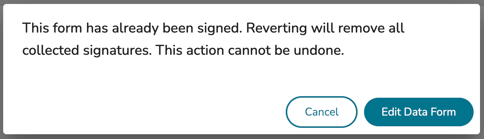
Clicking 'Edit Data Form' will clear all signature entries and allow you to modify your form and restart the signature processes listed above.