
When uploading a video file to TORSH Talent, there are a number of reasons as to why your file will not finish uploading in a timely manner. The time it takes for your video to finish uploading is dependent on the following factors:
- Internet connection stability
- Internet connection speed
- Available storage space
- File size
- File format
Further Troubleshooting:
Please follow the bookmarked troubleshooting links below to read about further help with your video upload:
I. Interruption in Internet Connection
I. Interruption in Internet Connection
If your video upload in the TORSH Talent mobile app is stuck without any further progression, it's possible it may have experienced an interruption, causing the video upload to stall/fail. You will need to cancel and restart the video upload.
What Causes an Interrupted Upload?
- A minor interruption in internet connection, either from accessing a new cell tower or a new WiFi network as you move, or from a brief disruption or delay to your current internet connection.
- Your video file is very large and requires a stronger internet connection.
- Closing/navigating out of the TORSH Talent mobile app before your video upload finishes.
Resolving Stalled Mobile App Upload
-
To resolve this, first open and login to the TORSH Talent mobile app. Tap on the 'menu icon' in the top, left-hand corner. Then tap 'Videos & Files.'
-
On your Videos & Files page, find the video you are attempting to upload. Tap on its 'gear icon' next to the video and tap 'Cancel Upload' in the menu that appears.
-
Once the video upload is cancelled, tap on its gear icon once more. Then tap 'Upload.'
-
Keep your mobile app open until the upload completes. Until your video has completed the upload process, the TORSH Talent mobile app must sustain a strong WiFi connection. Make sure that the progress percentage reaches 100% and that the video's status changes to 'Location: Mobile & Web' or 'Location: Web.'
Resolving Stalled Website Upload
-
To resolve a stalled upload on the website, first refresh your web browser to clear out the upload.
-
Then re-upload your file from the 'cloud icon' upload pop-up.
-
Keep the webpage open with the Upload pop-up until the video has completed the upload process.
II. Low Internet Speed
If your internet speed is too low, we recommend connecting to a stronger, more stable network before resuming your upload process.
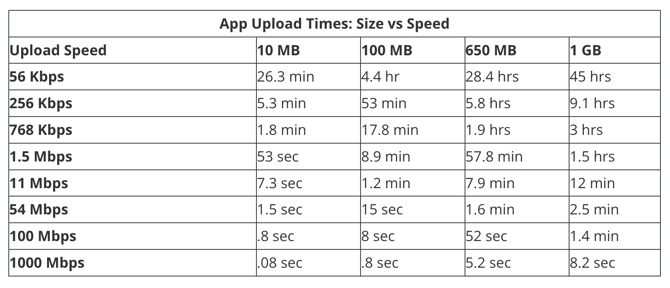
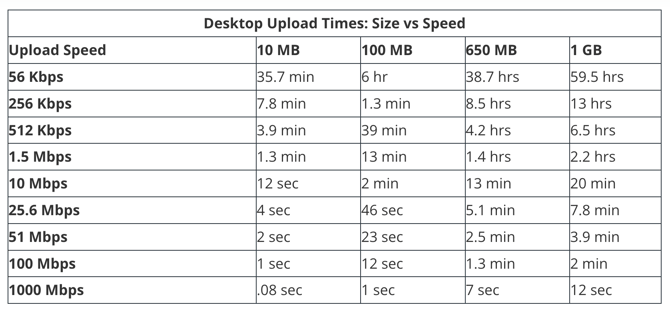
The time videos take to upload is highly dependent on your available upload bandwidth. The FCC legally defines high-speed internet or “broadband” as an internet connection with the following speeds:
-
Download Speed of 25 Mbps or higher
-
Upload Speed of 3 Mbps or higher
If your connection is below that range, it may cause issues with uploading from your device. You can use websites like speedtest.net to determine your available upload speed.
When recording your video using the TORSH Talent app's default resolution settings, 30 minutes of video will increase the file size by ±90MB. Use the charts below to determine the expected upload time for your video’s size.
III. Low Storage Space on Device
If your video upload in the TORSH Talent mobile app is stuck without any further progression, and you receive an upload warning pop-up stating:
Uploading very large files without ample available storage space can result in unpredictable behavior.
Freeing up more space on your device before uploading will result in a better experience. Are you sure you wish to proceed?
Your mobile device is running out of storage space and most likely does not have enough storage space to provision the upload at all. In order for videos and files to upload to the internet, your immediate device not only needs enough space to create the video file, but it also needs the same amount of space as the created video file to temporarily process an upload copy that is then sent to our web servers for storing the video file copy.
The 'Recording Time Available' shown on the TORSH Talent mobile app's Camera page is dependent on how much space is available on your mobile device to save the video.
To free up storage on the TORSH Talent mobile app, you can delete any old photos, videos, or unused apps. You can learn more about how to quickly manage your storage space here .
Additionally, if any of your videos in the TORSH Talent mobile app have been successfully uploaded to the Talent web platform and display with a Status of 'Location: Mobile & Web', they can be deleted from the mobile app by tapping the gear icon of each video on the Videos & Files section of the mobile app and selecting 'Delete from Device.' Doing so will leave the web copy but delete the copy that is stored on your device.
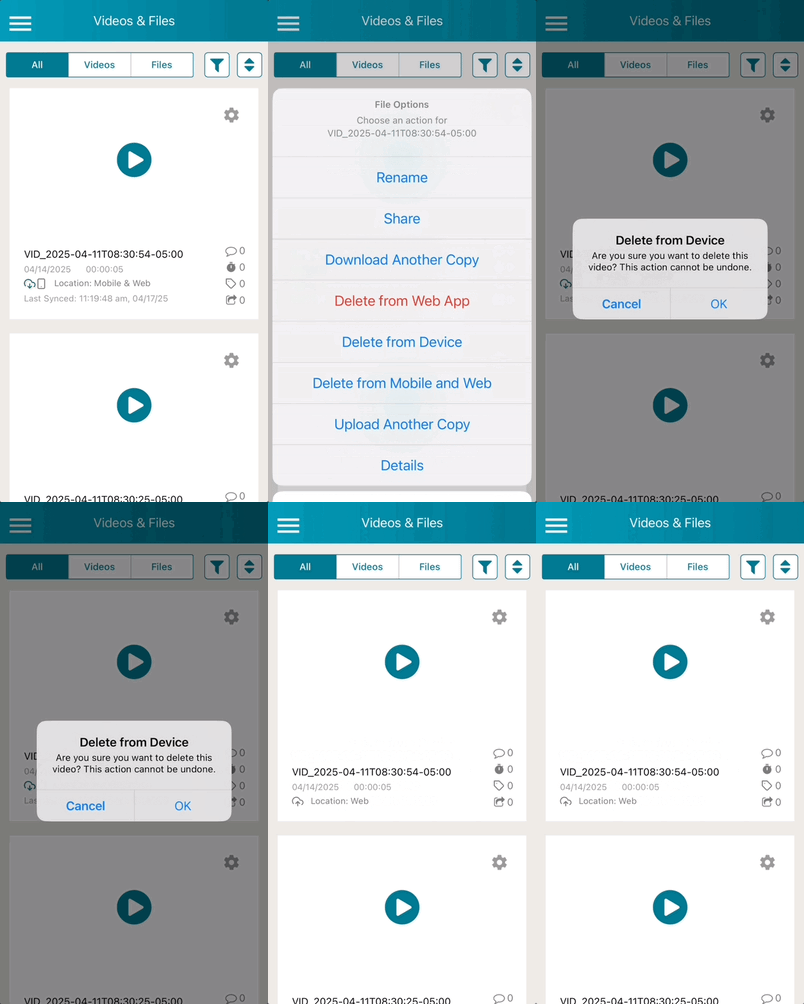
Once you have freed up further space on your device, please try your video upload again using these steps. Tap on the 'menu icon' in the top, left-hand corner. Then tap 'Videos & Files.'
-
On your Videos & Files page, find the video you are attempting to upload. Tap on its 'gear icon' next to the video and tap 'Cancel Upload' in the menu that appears
-
Once the video upload is cancelled, tap on its gear icon once more. Then tap 'Upload.'
-
Keep your mobile app open until the upload completes. Until your video has completed the upload process, the TORSH Talent mobile app must sustain a strong WiFi connection. Make sure that the progress percentage reaches 100% and that the video's status changes to 'Location: Mobile & Web' or 'Location: Web.'
IV. File Size Is Too Big
If your video file is above 1 Gigabyte (GB) in size, it may be too large for your internet connection to process on our website. It may be worth compressing your video down to a smaller file size before uploading to the TORSH Talent website.
Video files are often very large in size, and depending on your network connection, it can be difficult and time-consuming to upload these files to TORSH Talent. If you happen to have a copy of the video file on your computer, we highly recommend you compress the file to 480p resolution by downloading and using the following free, trusted service on your computer: Handbrake
Once you have downloaded the program to your desktop/laptop computer, open the program and follow the steps listed below:
- First click 'Open Source' and select your video.
- Navigate to the 'Preset' dropdown at the top of the window.
- Click the 'Preset' dropdown (What currently displays as 'Fast 1080p 30').
- A dropdown list will appear. Hover over 'General.' Another dropdown list will appear.
- From this second list, select 'Fast 480p 30.'
- Navigate to 'Browse' at the bottom and determine where you would like your newly compressed videos to download to.
- Lastly, click the green 'Start' button at the top.
- Allow the encoding/compressing process to complete. Once it is finished, you should find a new, smaller copy of your video on your computer.
Once you have located this compressed video copy, login to TORSH Talent on a trusted web browser on your computer (Safari, Mozilla Firefox, or Google Chrome). Then go to 'Upload' on Talent and upload your newly compressed video file.
Please note that if you record video using your device's native camera, you will be recording at the highest possible video quality, which will increase your file size and upload time. We highly recommend that you record video directly using the TORSH Talent app instead, as it records at a much lower resolution by default, resulting in smaller files and quicker, more stable video uploads to the website.
V. Incompatible Video Format
If your video file is not a compatible format, you may run into some difficulties with uploading and encoding the video properly to the website. Please make sure the video file is in an approved file format:
- .flv
- .mp4
- .mov
- .wmv
- .avi
- .mpeg
- .mpg
- .mkv
- .mpe
- .ogg
- .3gp
- .ac3
- .ec3
- .mf4
- .mj2
- .mxf
- .ts
- .webm
If your video is not in the correct file format, you should be able to re-export it to one of the compatible formats. You can then re-save it in the correct format for uploading to Talent. Next, try to upload the video in an approved web browser (Google Chrome, Mozilla Firefox, or Safari).
If your video does not upload successfully after a prolonged period, feel free to reach out to us at support@torsh.co.